OSM to Vector Tiles
Rendering OpenStreetMap (OSM) data to vector tiles in MBTiles, where the tiles are in the Mapbox Vector Tile Format and tilemaker will be used to do the heavy lifting.
The tilemaker tool aims to be ‘stack-free’ where you don’t need a database or
the dozen of other executables and as such only requires single executable.
When I looked it going from OSM data to raster (PNG and TIFF), I used the
typical stack of using a Postgres server and osm2pgsql and several other
tools to load the data into the database.
This came about because I was looking into the dataset that Microsoft released which included building footprints for Australia and wanted to see that data with OpenStreetMap within QGIS. For that use I could have simply added an XYZ layer which used OpenStreetMap’s raster tiles for context.
Set-up TileMaker Windows
curl -LO https://github.com/systemed/tilemaker/releases/download/v2.4.0/tilemaker-windows.zip- Extract build\RelWithDebInfo within the ZIP to tilemaker
- Extract resources within the ZIP to tilemaker\resources
Set-up TileMaker Ubuntu 22.04
curl -LO https://github.com/systemed/tilemaker/releases/download/v2.4.0/tilemaker-ubuntu-22.04.zip
unzip tilemaker-ubuntu-22.04.zip -d ~/tilemaker-v2.4.0
cp ~/tilemaker-v2.4.0/build/tilemaker ~/tilemaker-v2.4.0/
chmod +x ~/tilemaker-v2.4.0/tilemaker
Data Preparation
Extracting out a sub-section of the data is not required, specially if the data is already small enough for the area you are interested in.
- Download an extract of the OpenStreemMap data from Geofabrik.
curl -L http://download.geofabrik.de/australia-oceania/australia-latest.osm.pbf --output Source/OpenStreetMap/osm/australia-$(date -u +"%Y-%m-%d").osm.pbfThe following version has the date hard-coded to match the rest of the dates.
curl -L http://download.geofabrik.de/australia-oceania/australia-latest.osm.pbf --output Source/OpenStreetMap/osm/australia-2023-12-28.osm.pbf - Use osmium tools to extract a subsection from the previous download.
- For Ubuntu 22.04, the tools can be an be installed via
apt install osmium-tool - Use osmium tool to extract a subsection out of the source file.
osmium extract Source/OpenStreetMap/osm/australia-2023-12-28.osm.pbf --bbox 137.994,-35.619,139.495,-34.359 --output Generated/OpenStreetMap/adelaide-2023-12-28.osm.pbf
- For Ubuntu 22.04, the tools can be an be installed via
To determine what the bounding box was the following steps were followed:
- Go to the CD (Coordinate Display) tab of Tile Calculator.
- Translate yellow box over the target region, this is done by dragging the box.
- Resize the box using the corners or mid-points around the edge.
- Copy the bounding box from the right hand side in the Coordinate Display tab.
Not included above is the setting up the additional shapefiles required by tilemaker to produce maps similar to OpenStreetMap that include data that isn’t available from the OSM file.
Each of the shapefiles for coastline and landcover are available from these places:
- https://osmdata.openstreetmap.de/download/coastlines-split-4326.zip
- https://naciscdn.org/naturalearth/10m/cultural/ne_10m_urban_areas.zip
- https://naciscdn.org/naturalearth/10m/physical/ne_10m_antarctic_ice_shelves_polys.zip
- https://naciscdn.org/naturalearth/10m/physical/ne_10m_glaciated_areas.zip
These ZIPs can be extracted and then assembled into the locations provided by
resources/config-openmaptiles.json from tilemaker.
Generating Tiles
~/tilemaker-v2.4.0/tilemaker --input Generated/OpenStreetMap/adelaide-2023-12-28.osm.pbf --output Generated/OpenStreetMap/adelaide-2023-12-28.mbtiles --config ./resources/config-openmaptiles.json --process resources/process-openmaptiles.lua --bbox 137.994,-35.619,139.495,-34.359
I tested tilemaker v2.4.0 on both Ubuntu 22.04 and Windows 10 (22H2).
Viewing Tiles
QGIS was used to confirm that the produced tiles were correct.
- Start QGIS. For reference the version used was 3.32.1.
- Add Vector Tile layer, this is done via Layer > Add Layer > Add Vector Tile Layer.
- Select File as the Source Type
- Browse to the mbtiles file created, via the triple dot button.
- Click Add then Close
- Observe you will likely see an error about Error loading style: Style not found in database. The map will have a very generic style where polygon, lines and points are each assigned a colour.
- Load a Mapbox GL Style JSON File to load style that matches OSM.
- Download the style, for example OSM Bright GL Style. An alternative would be Positron GL style.
- Extract the ZIP.
- Open up the properties for the Vector Tile layer. This can be done by double clicking on the layer or using the secondary mouse button and choosing Properties… from the context menu.
- Click Style then Load Style
- Under Load style select From File if it is not already selected.
- Browse for the style file, for example
style-cdn.json - Click Load Style and the panel should close.
- Click OK on the Layer Properties panel to apply the new changes and close the panel.
- The map should now be stylised similar to OpenStreetMap.
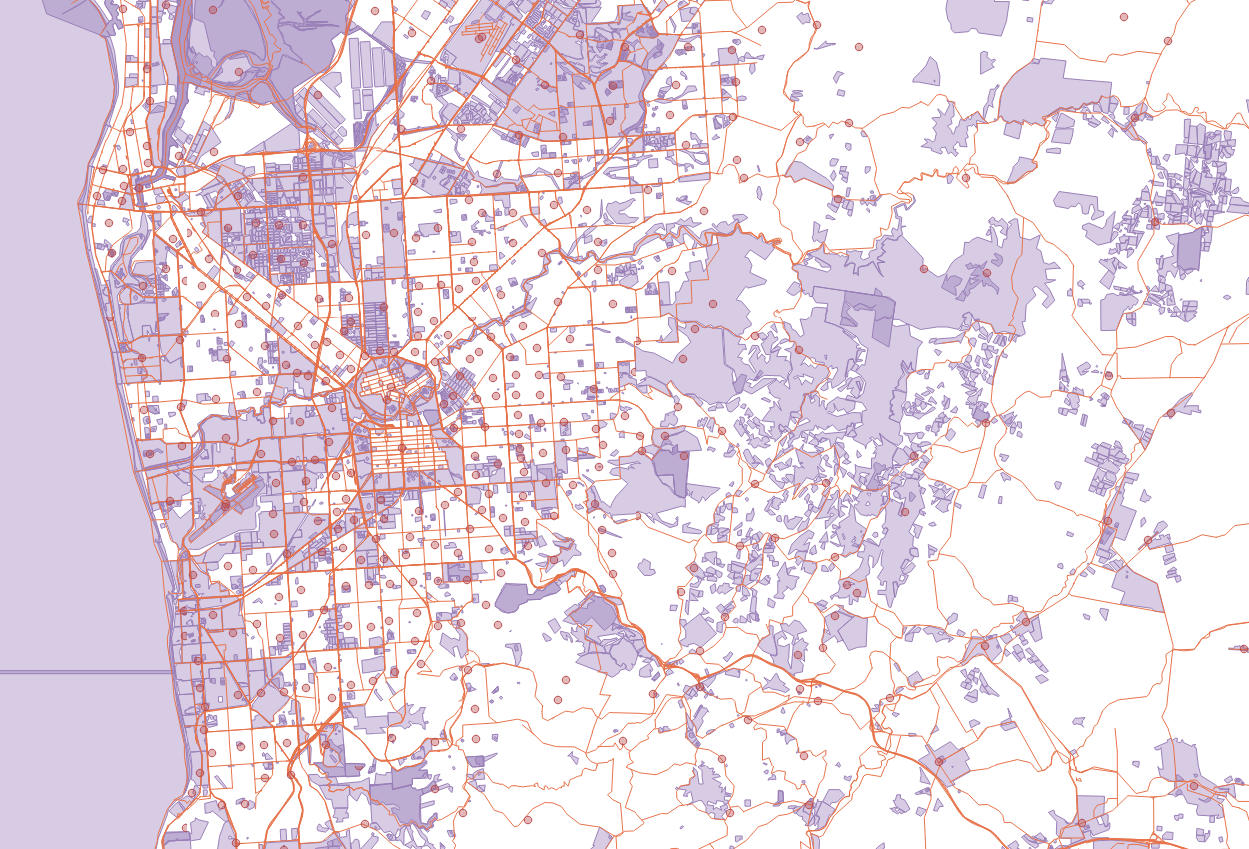
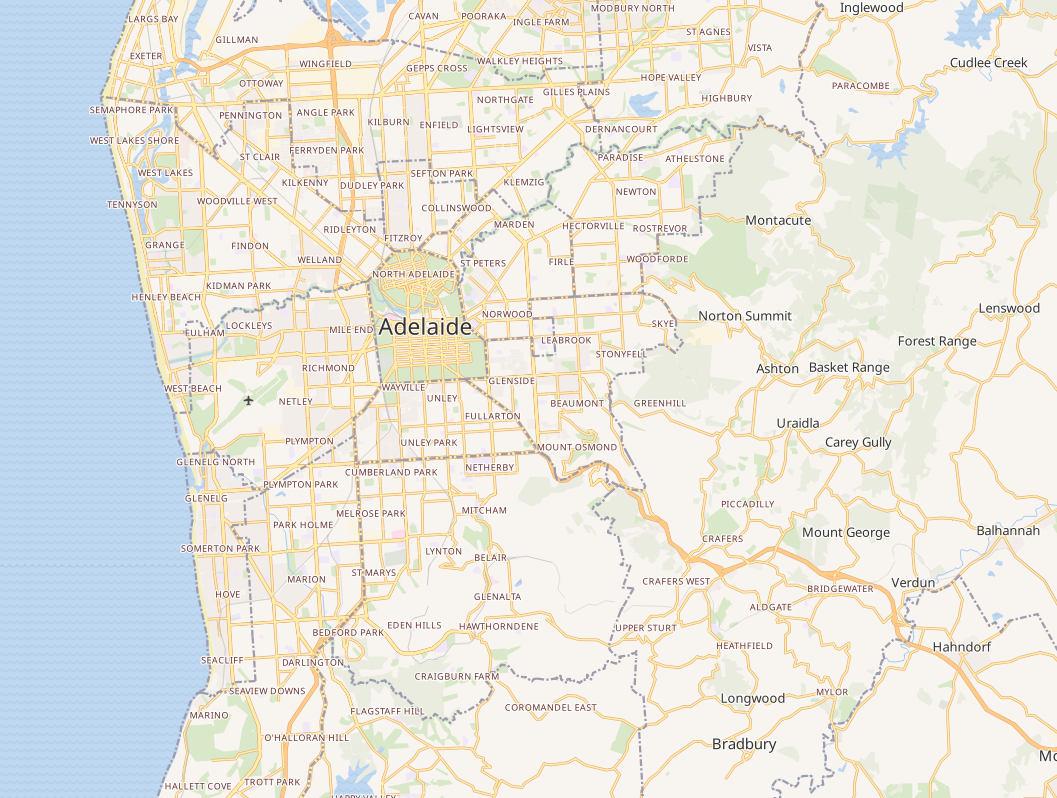
You can create another style for the layer and load another Maptekbox GL style file in which allows you to switch between them by right clicking on the layer and choosing the other style.
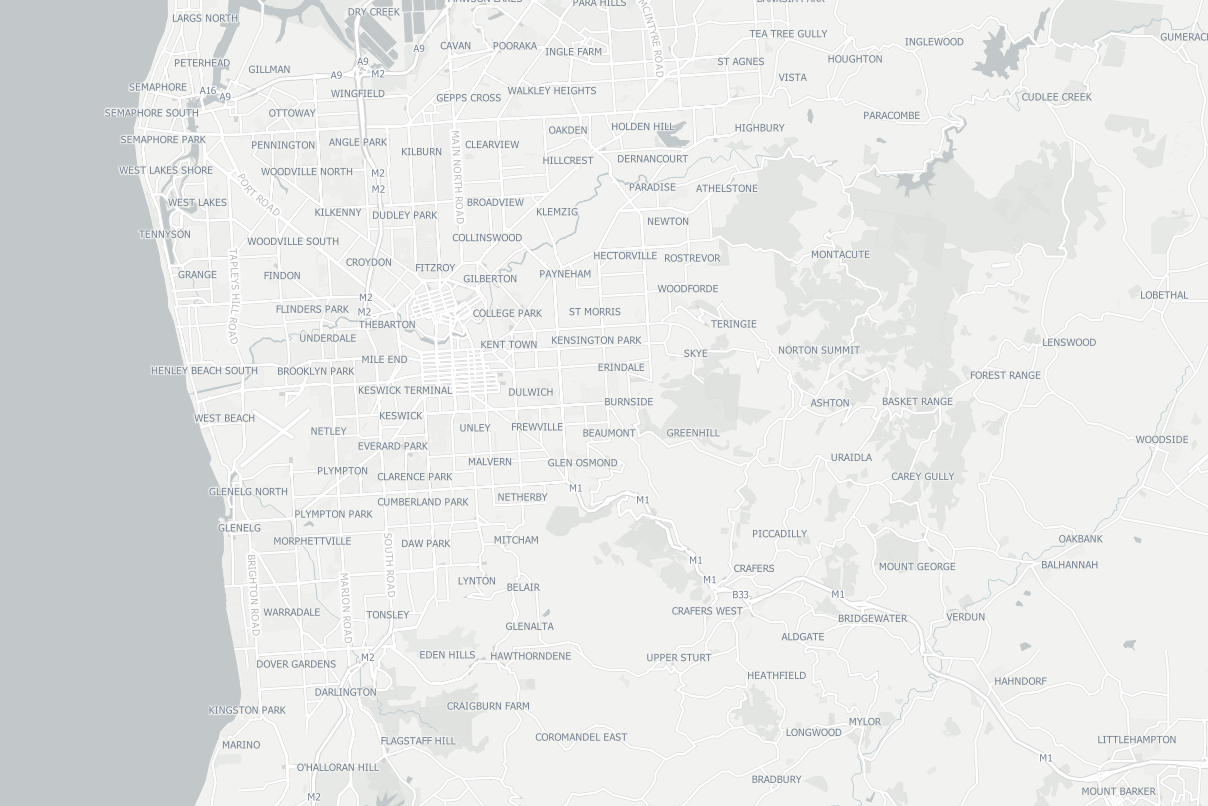
The following was taken by creating a “Positron” style and loading in the corresponding style.
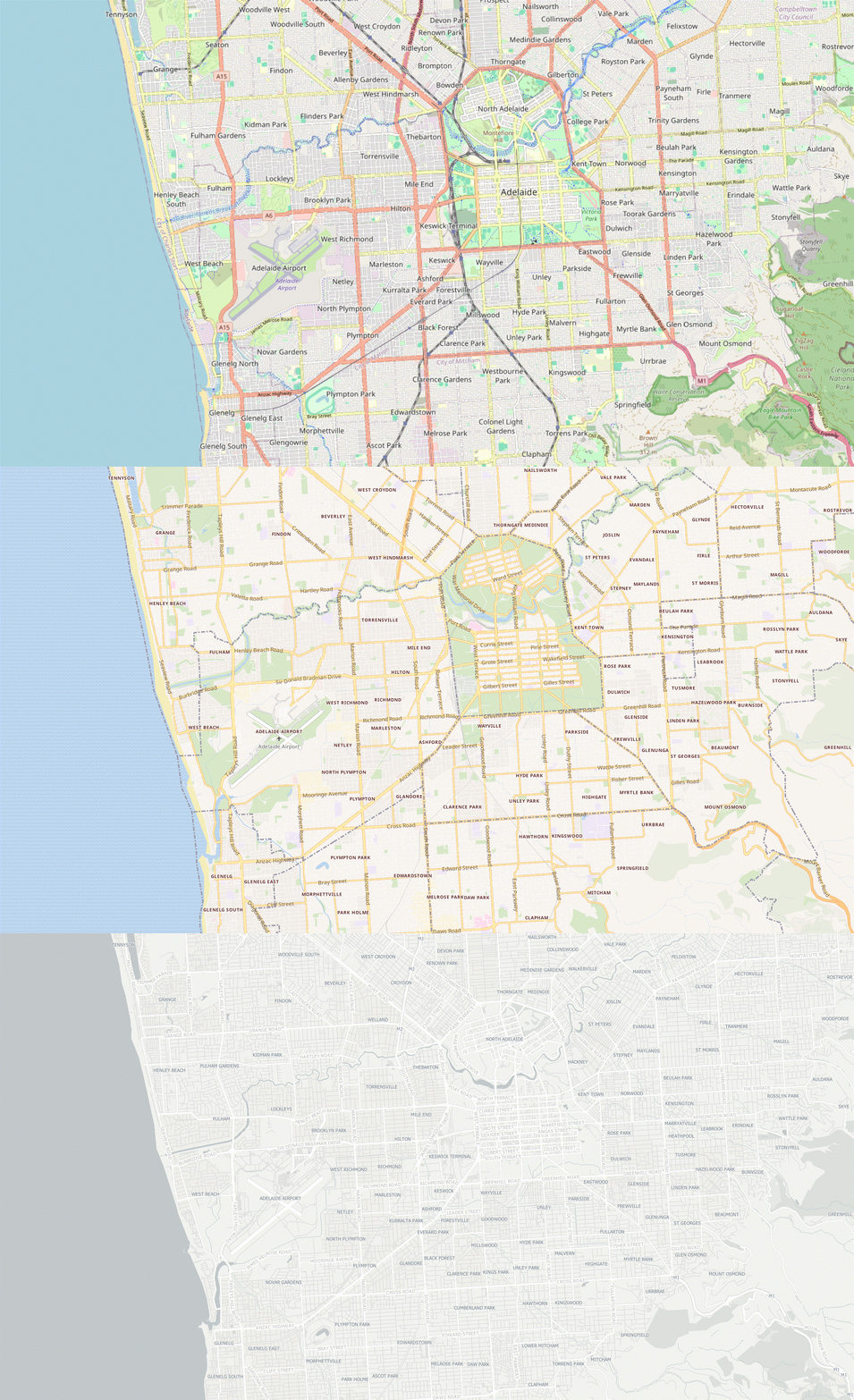
The following is an animation showing an area in Adelaide rendered by QGIS starting from the OSM raster tiles using an XYZ layer directly from the OpenStreetMap tile service, then the vector tiles with the OSM Bright style applied then Positron GL style applied.
Rendering with MapLibre Native
Update: This section was added in August 2026 but was written at least two years before.
The above option with QGIS was more to confirm that the tiles were correct and is a easy way to check that. However, for my plans the idea is to use MapLibre Native which is a free and open-source library for rendering maps in your applications. This means I don’t need to spend more time on my own renderer.
For this, I used Windows so I followed the Windows instructions for building.
git clone --recurse-submodules -j8 https://github.com/maplibre/maplibre-native.git
cd maplibre-native
cmake . -B build -G Ninja -DCMAKE_BUILD_TYPE=RelWithDebInfo
cmake --build build
Tweaking the style-local.json from osm-bright-gl-style to the following, where it tells it to load the tiles, to use the internet for the sprite and a local version I had generated previously of the fonts. I can’t recall how I I generated the fonts (perhaps, revisit it and then move this whole section to a follow-up post).
I suspect I generated this with build_pbf_glyphs from sdf_font_tools
Running sdf_font_tools\target\release\deps\build_pbf_glyphs.exe
...
  "sources": {
    "openmaptiles": {
      "type": "vector",
      "url": "mbtiles://G:/GeoData/Generated/OpenStreetMap/adelaide-2023-12-28.mbtiles"
    }
  },
  "sprite": "https://openmaptiles.github.io/osm-bright-gl-style/sprite",
  "glyphs": "file://G:/GeoData/Generated/OpenStreetMap/fonts/{fontstack}/{range}.pbf",
...
.\build\bin\mbgl-render.exe --style osm-bright-gl-style\style-local.json --output out_adelaide.png --zoom 14 --lat=-34.927676 --lon=138.598916